Burning firmware
Download burning tools
When burning bin file we need to use lexin flash burning tool. The tool can be downloaded from Lexin’s official website page.
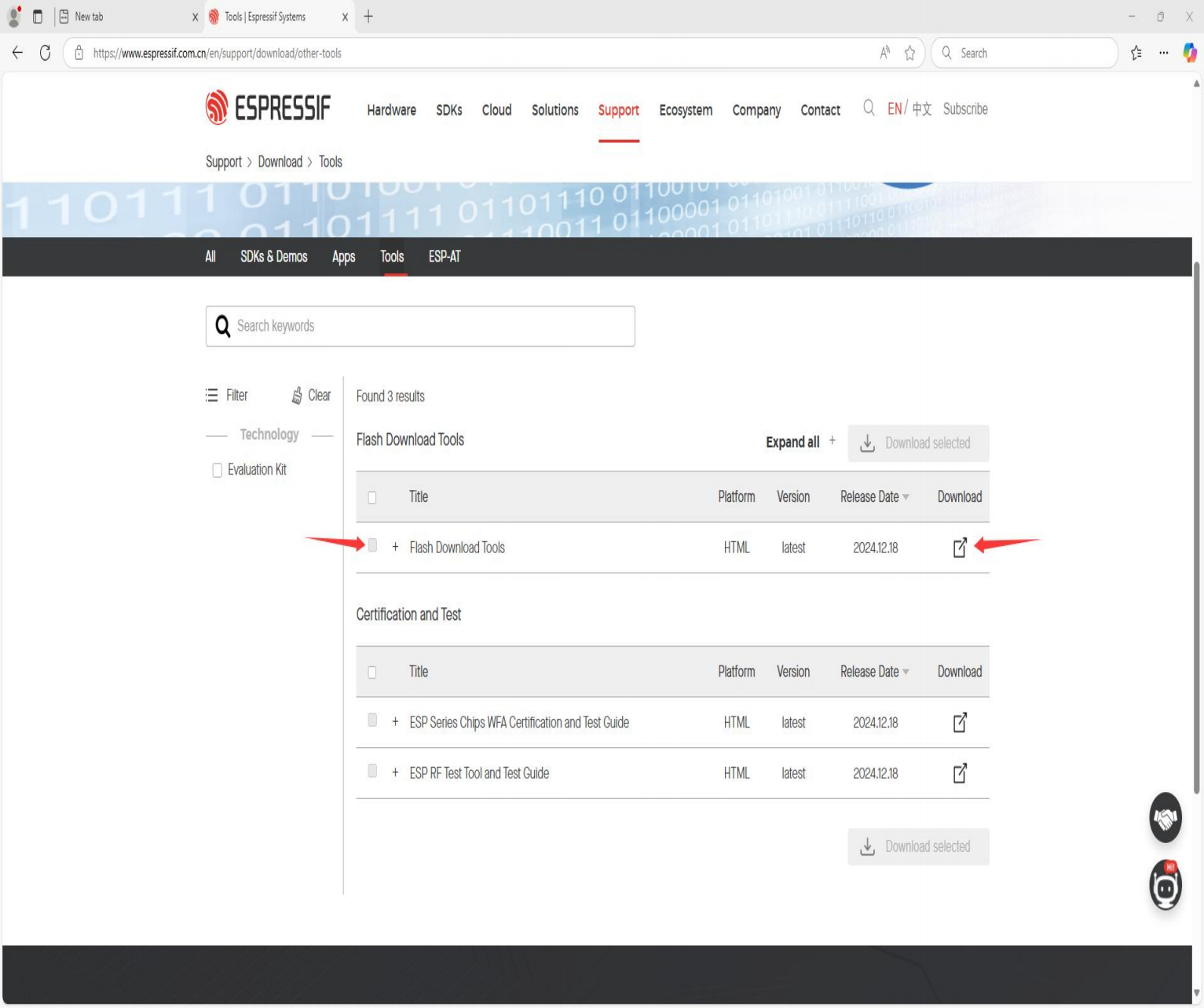
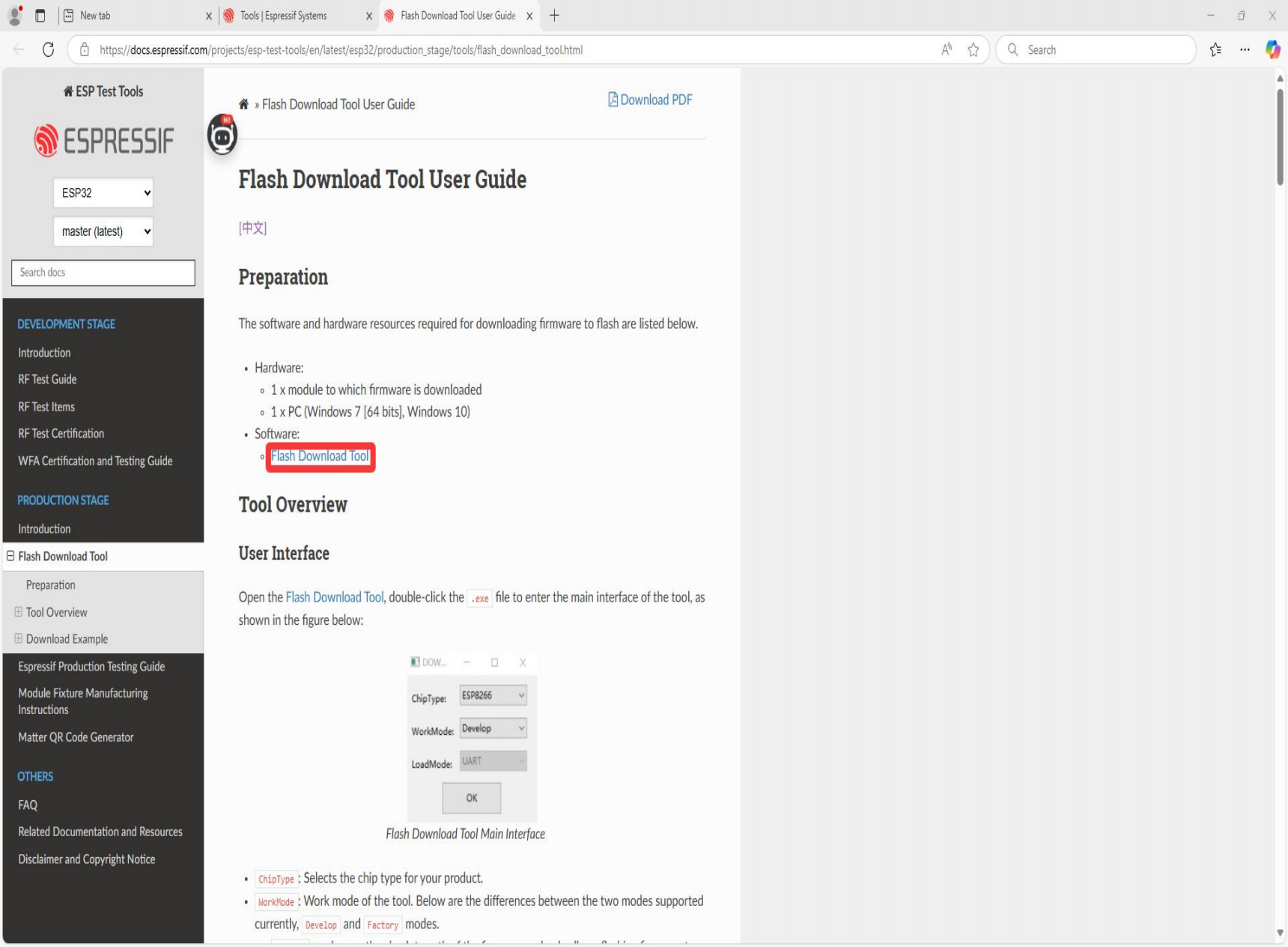
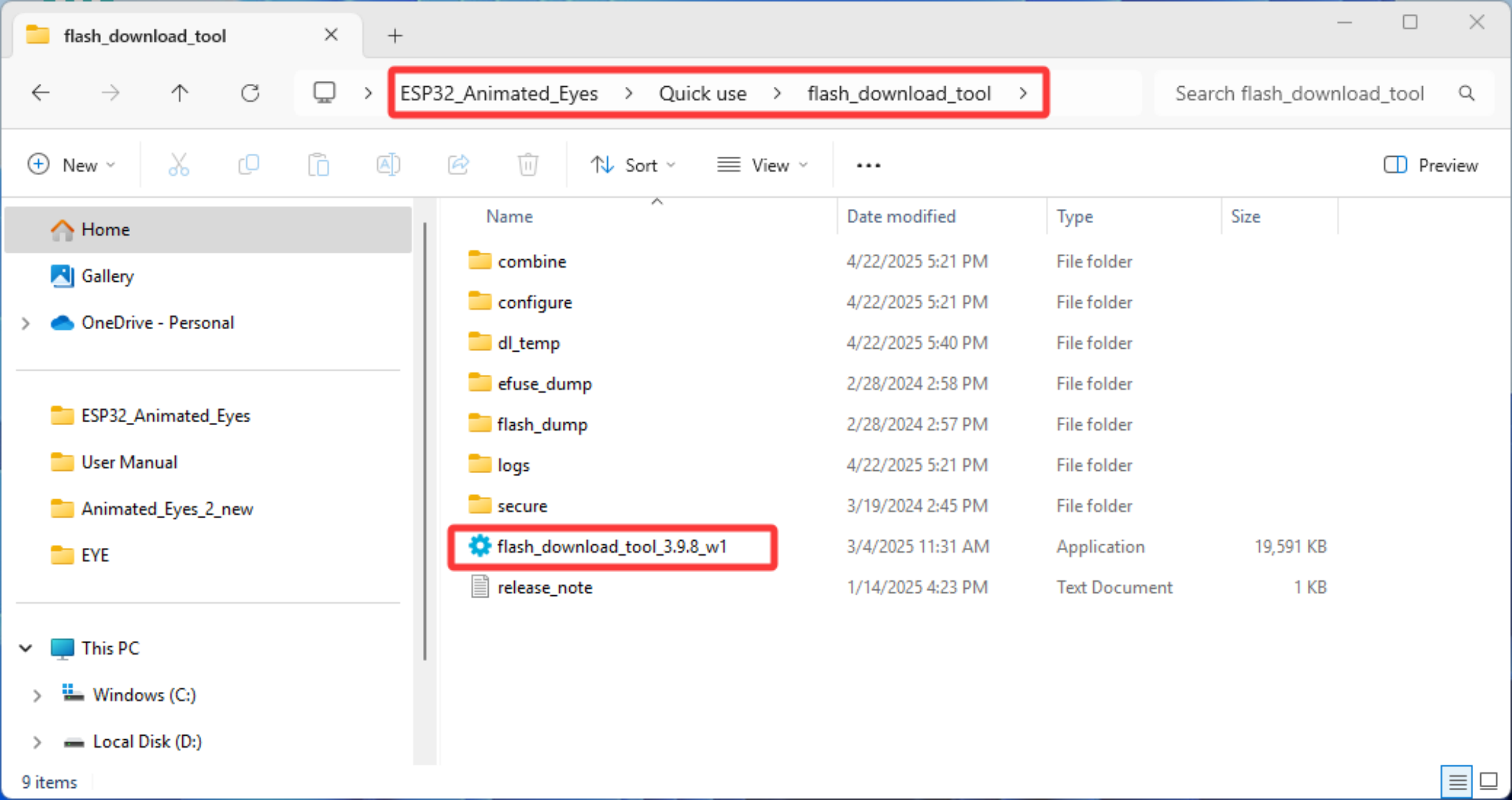
Here we have pre-installed the files in the project file Double-click to open it
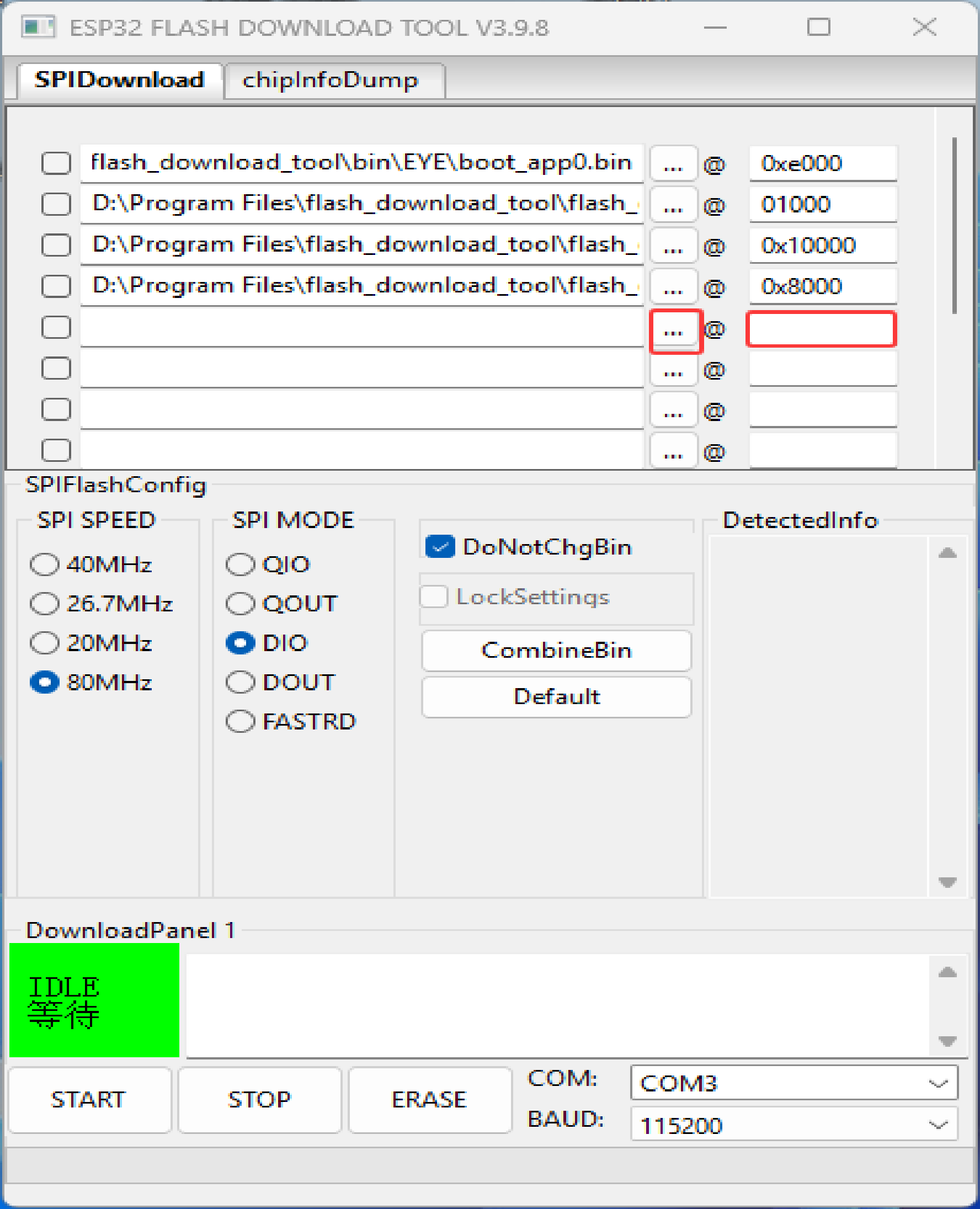
Introduction to the tools
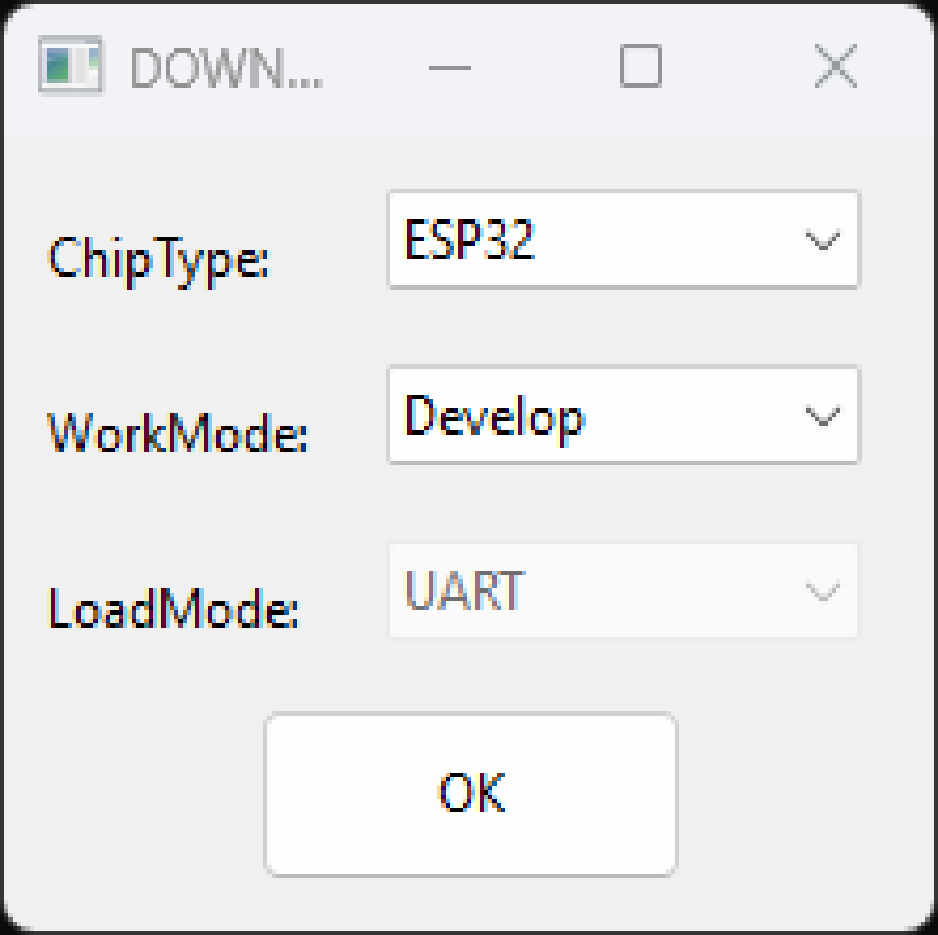
ChipType: the chip type, selected according to the type of product used WorkMode: Software mode, currently available in Develop mode and Factory mode, as follows: Develop mode uses the firmware absolute path and only supports single-chip product burning. Factory mode uses a relative path, and it is recommended that the firmware to be burned be placed with the. EXE file is automatically saved locally when it is closed after configuration. When Factory mode is turned on, the interface is locked and you need to click the LockSettings button to enable editing. Prevent misoperation of the mouse. Loadmode: the download interface only supports UART.

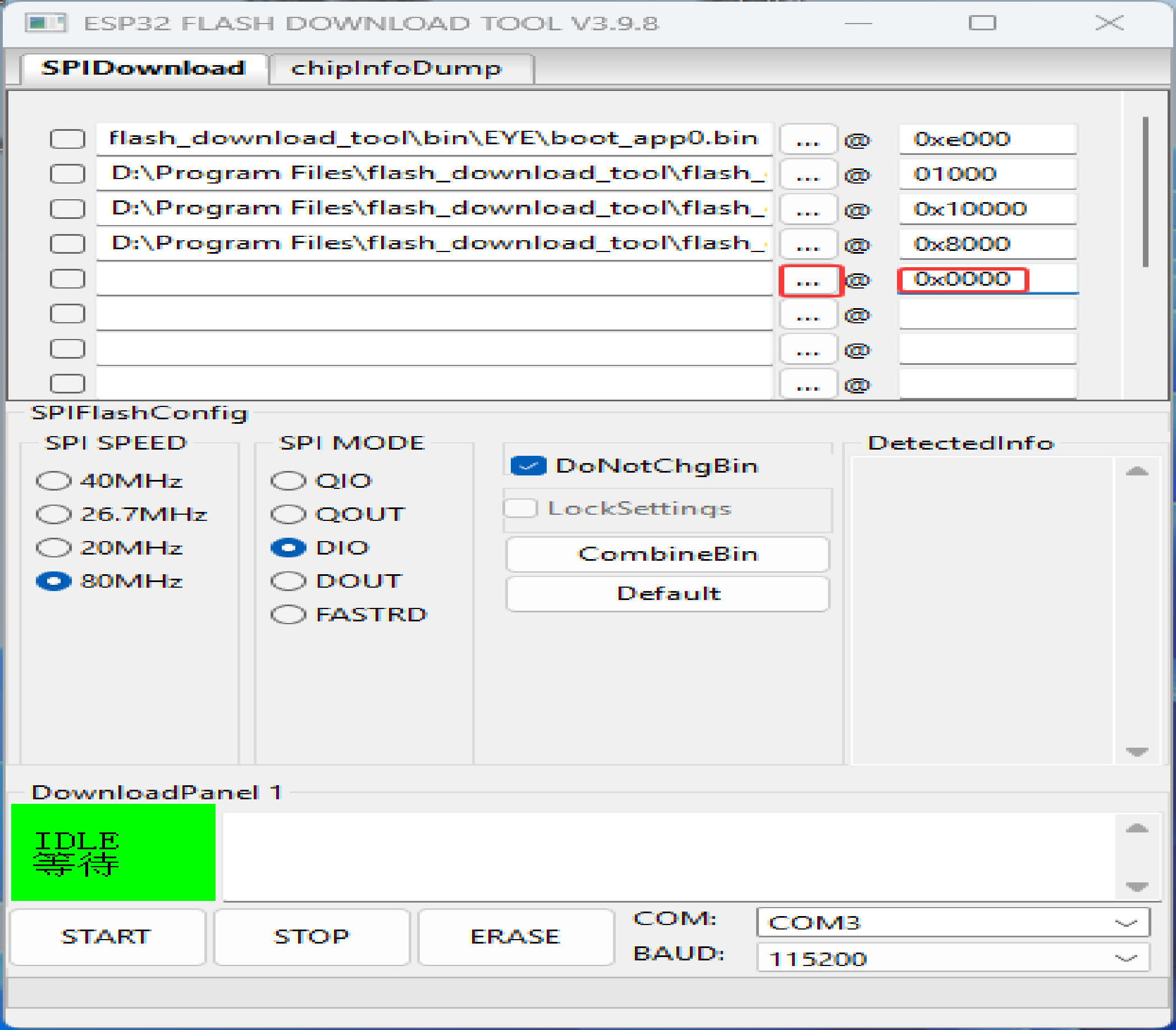
SPI Download Interface – Configuration Notes
- Download Path Config
Firmware load path and download address (hex, e.g.
0x1000).- SPI Flash Config
SPI Speed — SPI startup speed
SPI Mode — SPI boot mode
- Detected Info
Auto-detected flash & crystal details.
- Donotchgbin
ON— burn original.bincontentsOFF— update & burn according to current SPI Speed / SPI Mode
- Combinebin Button
Packages selected firmwares into one file.
Donotchgbin ON → keeps originals
Donotchgbin OFF → applies interface settings
Gaps filled with
0xFFOutput:
./combine/target.bin(overwritten each run)
- Default Button
Restore all SPI settings to factory defaults.
- Download Panel
Start — begin download
Stop — abort download
Erase — full-chip erase
Com — serial port
Baud — baud rate
Download the sample
Launch the download utility • ChipType →
ESP32• WorkMode →Develop• LoadMode →UART• Click OK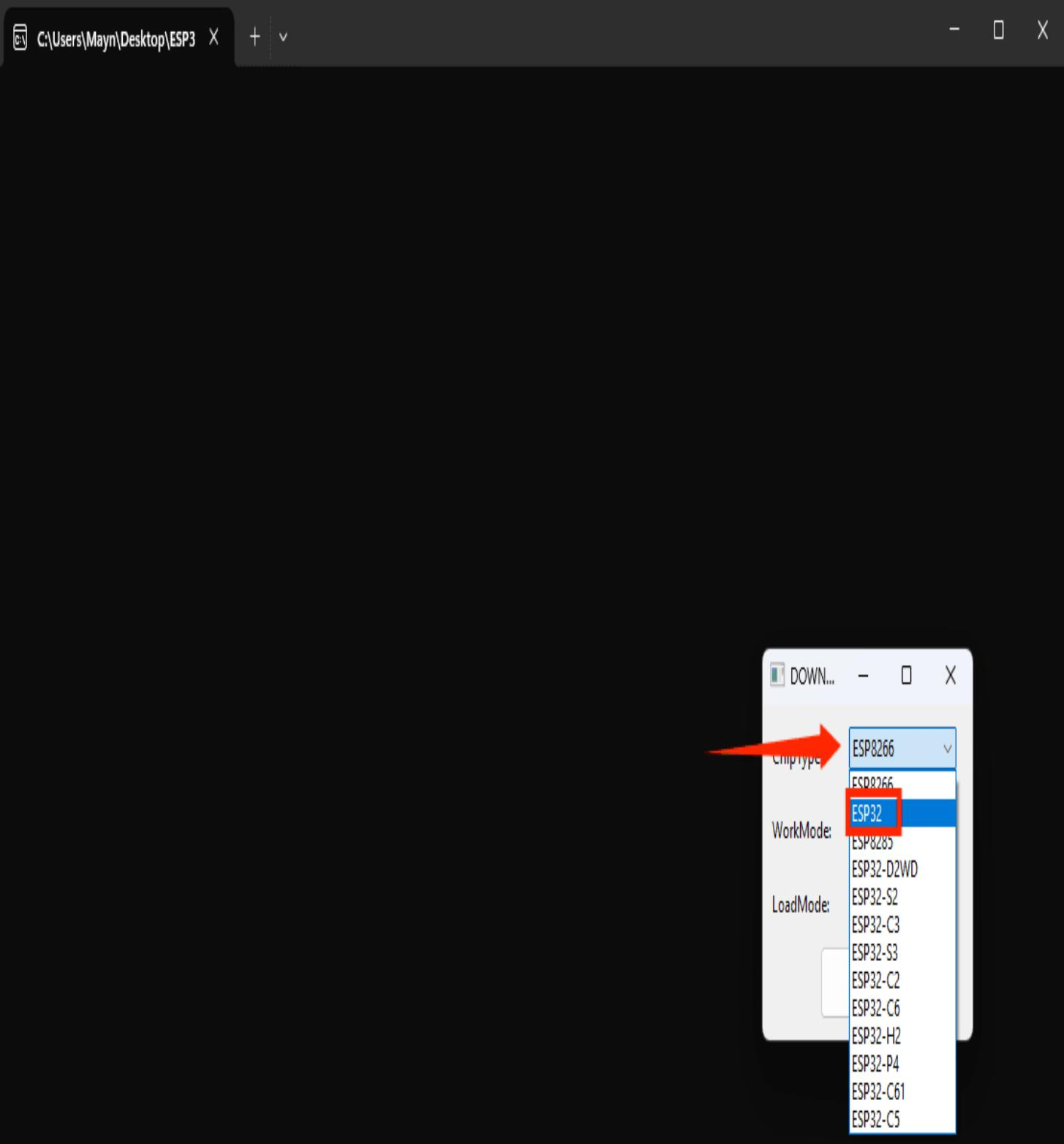
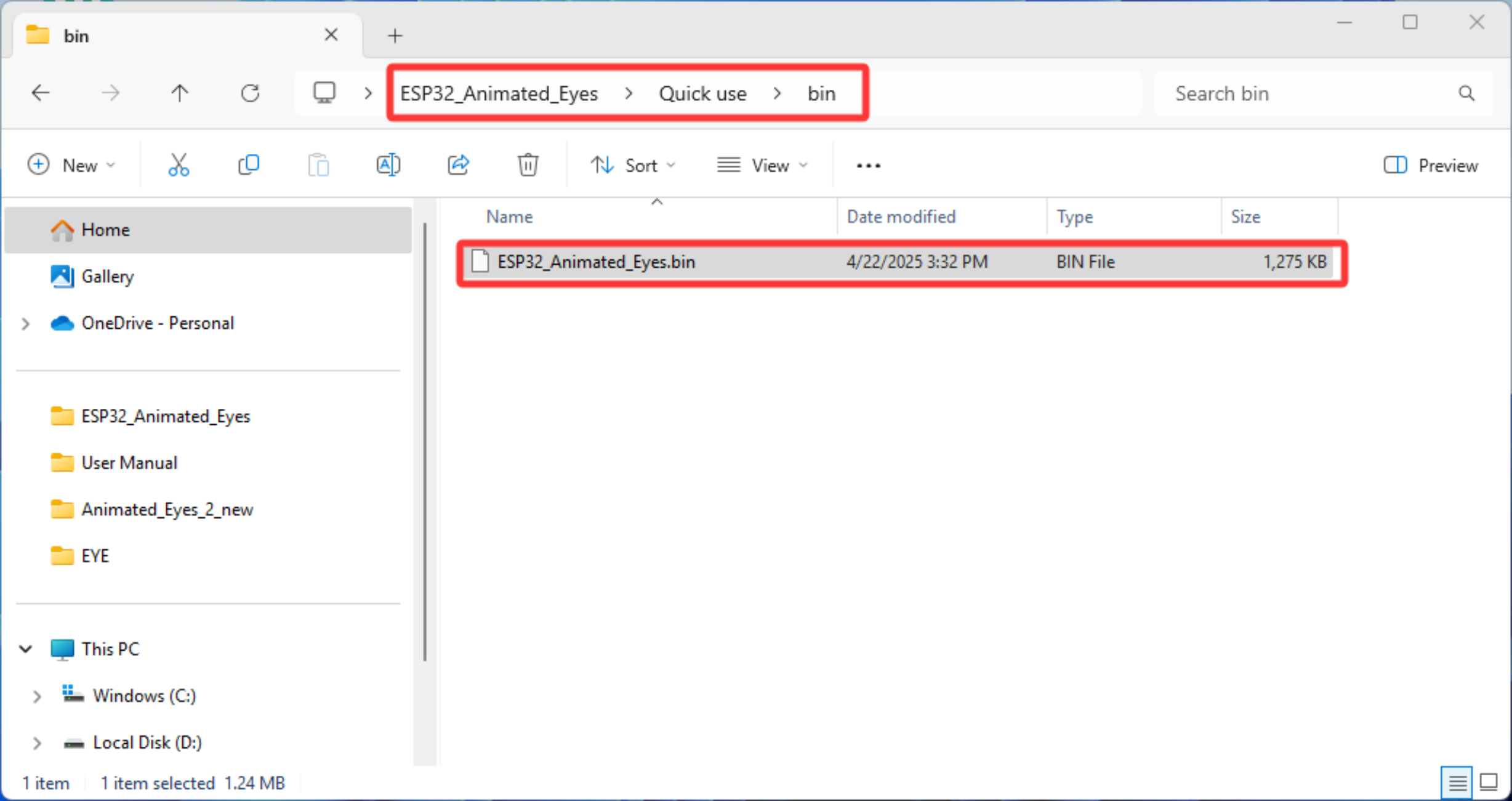
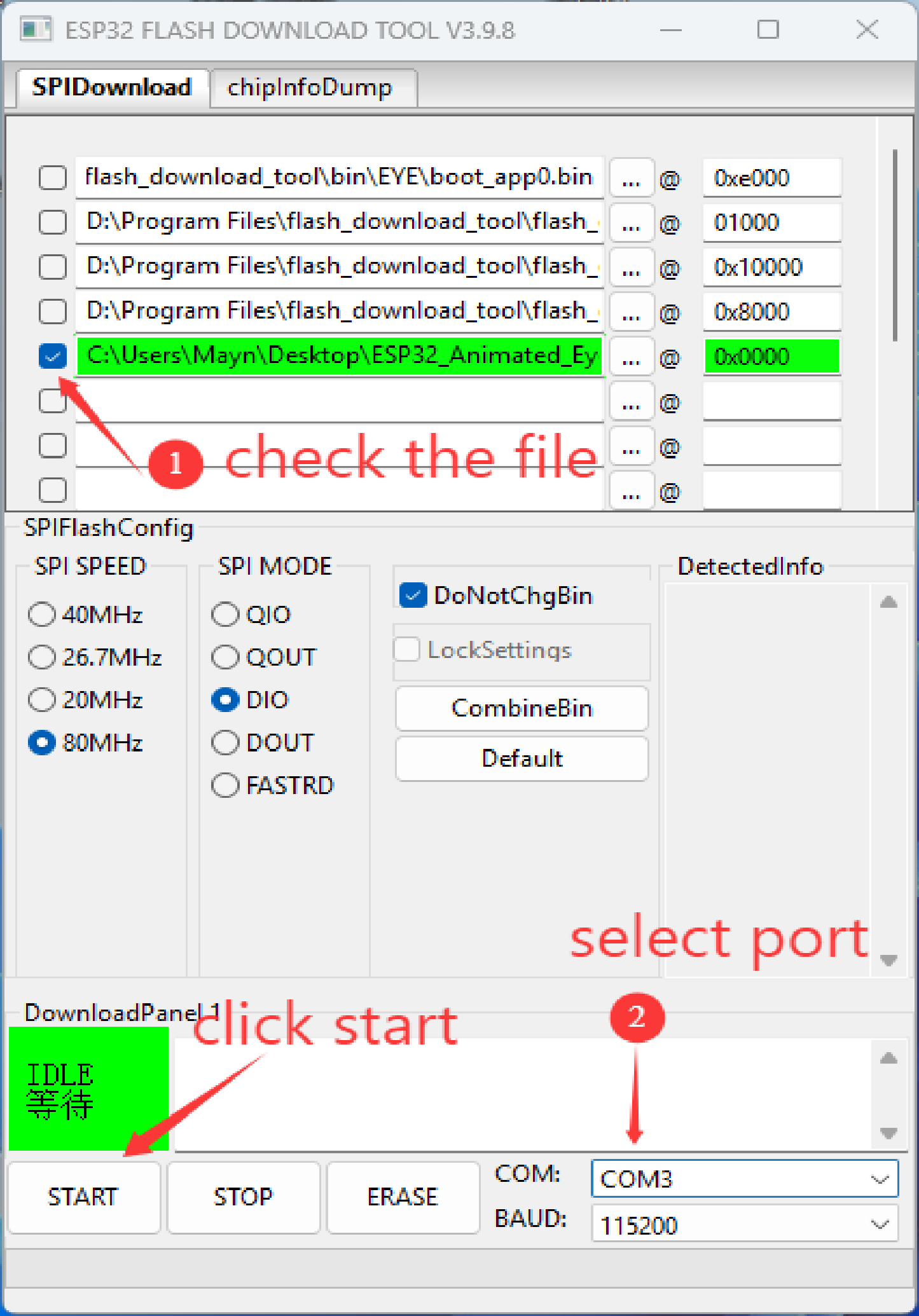
Configure the download page • Add the bin file(s) and their burn addresses • Tick the checkbox in front of each bin file • Set SPI Speed, SPI Mode, COM Port, and Baud Rate
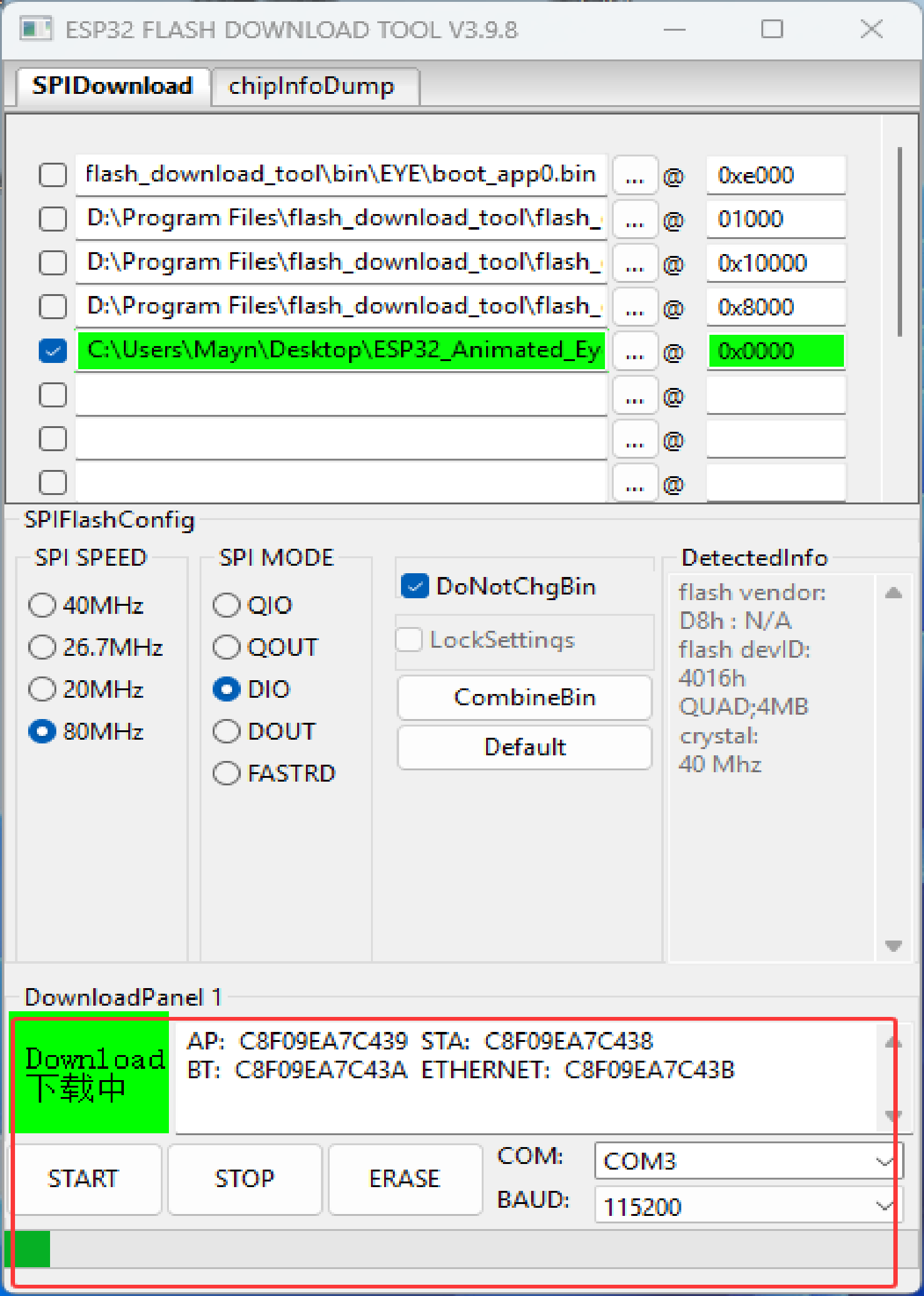
Start the download • Click START • The tool will read Flash Information and the MAC address during the process
After successful download • The tool’s interface will update (see figure below)
Final step • Restart the device